Support · 5 min read
Django with NGROK
Your local server isn't exposed to the real Internet, though, so your Django project can't receive requests from an external source, such as a
24 September 2026 · Amigo Digital Hub
Django comes with a lightweight server that allows you to serve your project on your local machine at http://localhost:8000. This is a great way to test and troubleshoot your application code.
Your local server isn't exposed to the real Internet, though, so your Django project can't receive requests from an external source, such as a
For development purposes, you may need to test that your app code properly handles requests from external sources. To do that, you must expose your app to the Internet.
What is ngrok?
The ngrok utility generates public URLs that map to your local server, enabling you to test how your development code handles requests from external sources. Read more about ngrok and how it works in the official documentation.
Prerequisites
All you need for this tutorial is an existing Django project running on Python 3.
Install the pyngrok package
The pyngrok package provides a Python wrapper around the core ngrok functionality. If you're using a virtual environment, remember to source the virtual environment before installing the package. Install the most recent version of pyngrok:
Python
Copy code
$ pip install pyngrokCreate a requirements.txt file if you don’t have one already. Add pyngrok to the file, making sure to pin the version installed by pip as shown in the code snippet below to avoid complications in the future. The version you need to pin will be the latest version at the time of this writing (v5.0.5), or a later version if available in the future:
Python
Copy code
# requirements.txt
pyngrok==5.0.5. # your version may be later
Allow Django to use ngrok URLs
We have to tell Django it's OK to allow ngrok to serve our Django code. To do that, add '.ngrok.io' to the 'ALLOWED_HOSTS' list in your Django project's settings.py file, along with the allowed local hosts:
Python
Copy code
# settings.py
ALLOWED_HOSTS = ['localhost', '127.0.0.1', '.ngrok.io']
The randomly-generated URL provided by ngrok will be in the form: https://<randomstring>.ngrok.io.
Even though we can't predict the random string in the URL, we can omit the random string portion of the URL and still tell Django that it's OK to allow the .ngrok.io domain.
Start the local Django server
In your Django project's root directory, start the local Django server by running one of the commands given below. Which command you run will depend on which version of Python your local machine runs by default. It’s safe to try both of these commands if needed. Your project will be served at http://localhost:8000 and 127.0.0.1:8000 as usual.
Python
Copy code
$ python manage.py runserverPython
Copy code
$ python3 manage.py runserverOpen the ngrok tunnel
Open a new command line window. Navigate to your Django project's root directory and source your virtual environment again if you're using one. Start the ngrok tunnel with the command given below. Note that the same port for ngrok to use must be the same as the port Django is using, which is port 8000 by default.
Bash
Copy code
$ ngrok http 8000
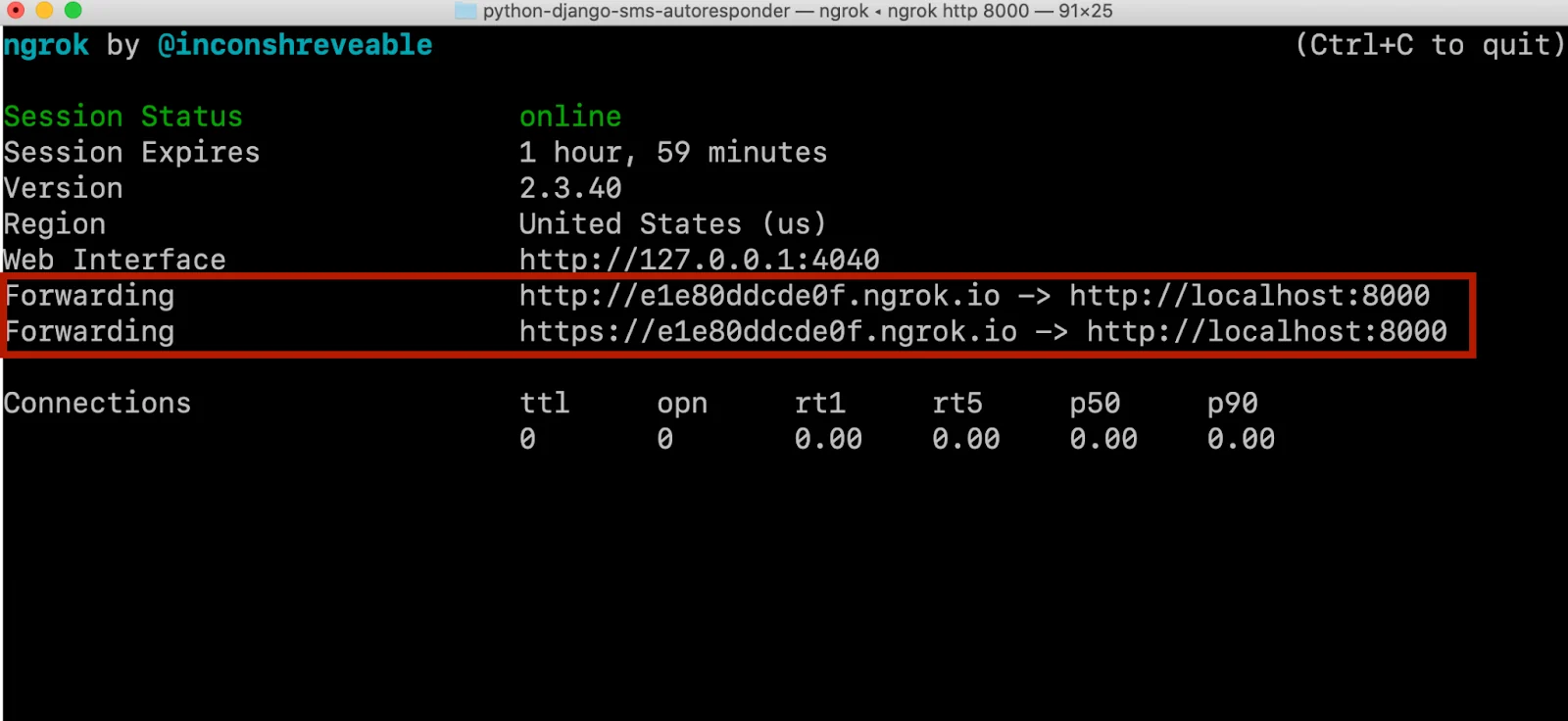
Note the Forwarding URLs highlighted in the red box in the screenshot above. Notice that ngrok exposes both a secure (HTTPS) and an insecure (HTTP) URL. Both of these forward to http://localhost:8000 which is insecure (HTTP).
Copy the secure (HTTPS) URL provided by ngrok and paste it into your web browser. You should see the same webpage you saw when you navigated to http://localhost:8000 after starting the local Django server.